
Editing bindings
A binding is what a key does on a layer: send a key, act as a modifier when held, switch layers, run a macro, change the lighting. This page covers selecting keys, the binding editor, encoders, and the three workspaces that decide where the editor opens.
Selecting keys
| Do | To |
|---|---|
| Click a key | Select it and open the binding editor. |
| Shift-click | Select a range from the last key you clicked. |
| ⌘-click / Ctrl-click | Add or remove one key — build a multi-selection. |
| Arrow keys | Move a single selection to the neighbouring key. |
| ⌘K / Ctrl+K | Open the binding editor (or the command palette) for the selection. |
| Backspace / Delete | Clear the binding(s) of the selection. |
| Right-click a key | Copy binding / Paste binding. |
| Esc | Clear the selection. |
A multi-selection is edited as one: whatever you assign lands on every selected key.
The binding editor
In the default Workbench workspace the editor opens as a sheet under the board:
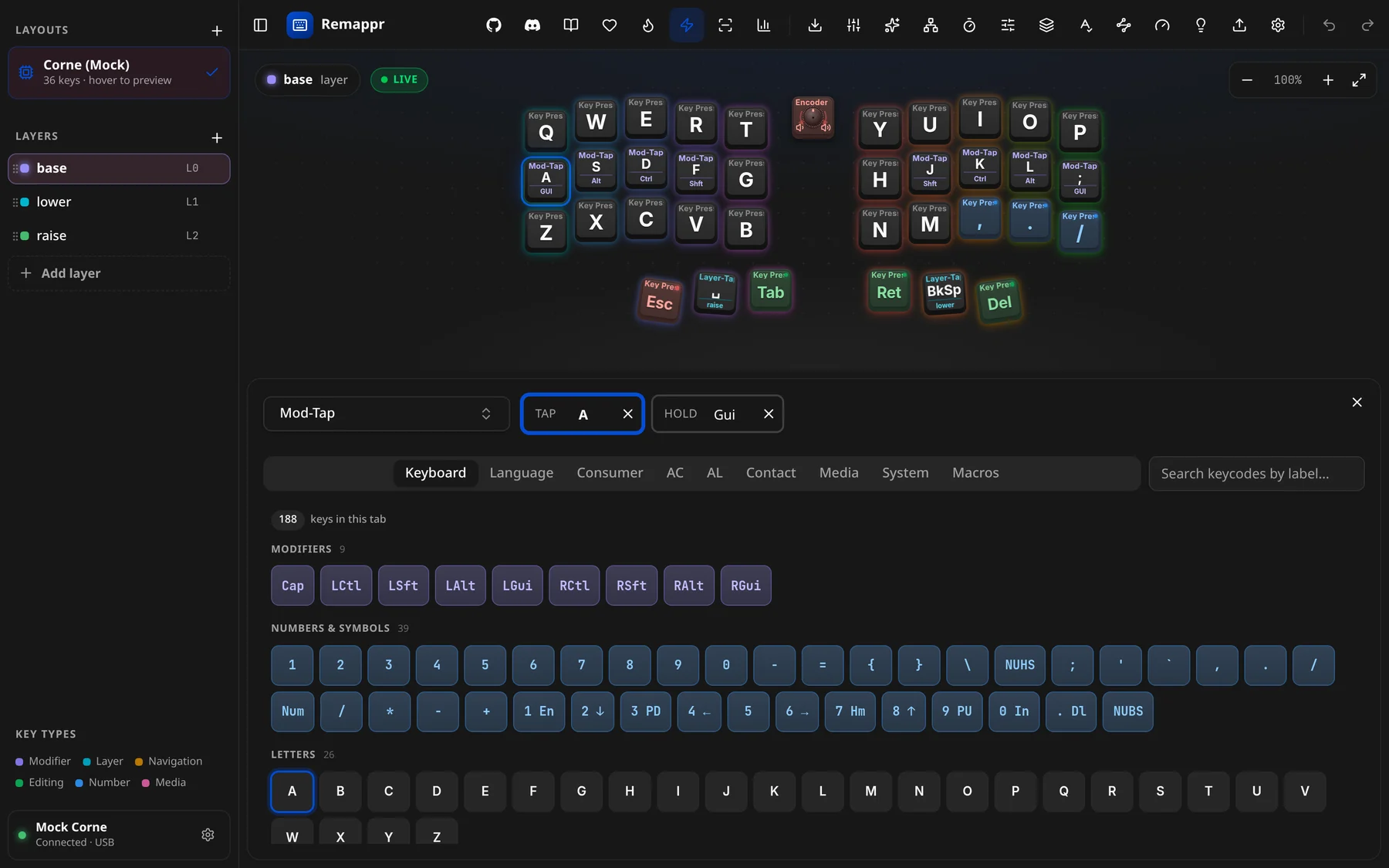
From the top:
- Action type — the dropdown on the left: Key Press, Mod-Tap, Layer-Tap, layer actions, macros, mouse, Bluetooth, lighting… Only the actions the connected firmware can set are offered.
- Parameter slots — one chip per parameter the action takes. A Key Press has one; a Mod-Tap has TAP (the key) and HOLD (the modifier); a Layer-Tap has TAP and the layer. Click a slot to aim the picker at it; × clears it.
- The keycode picker — tabs by HID usage page: Keyboard, Language, Consumer, AC, AL, Contact, Media, System, and Macros when the device has macros. Inside a tab keys are grouped (MODIFIERS, NUMBERS & SYMBOLS, LETTERS, …) with a count per group and for the tab ("188 keys in this tab").
- Search — "Search keycodes by label…" filters the current tab by name (
esc,vol,f13…).
Pick a key and the board updates straight away (see Undo, discard and save for when it reaches the keyboard for good). The × at the top-right closes the sheet but keeps the key selected (a small card with an Edit button stays on the board); Esc clears the selection.
Tap dances
When the device supports dynamic entries, a tap-dance binding shows an "Edit tap-dance #{n}…" button that opens the entry in the Advanced sheet.
Encoders
A rotary encoder is a knob cap on the board. Click it to edit it:
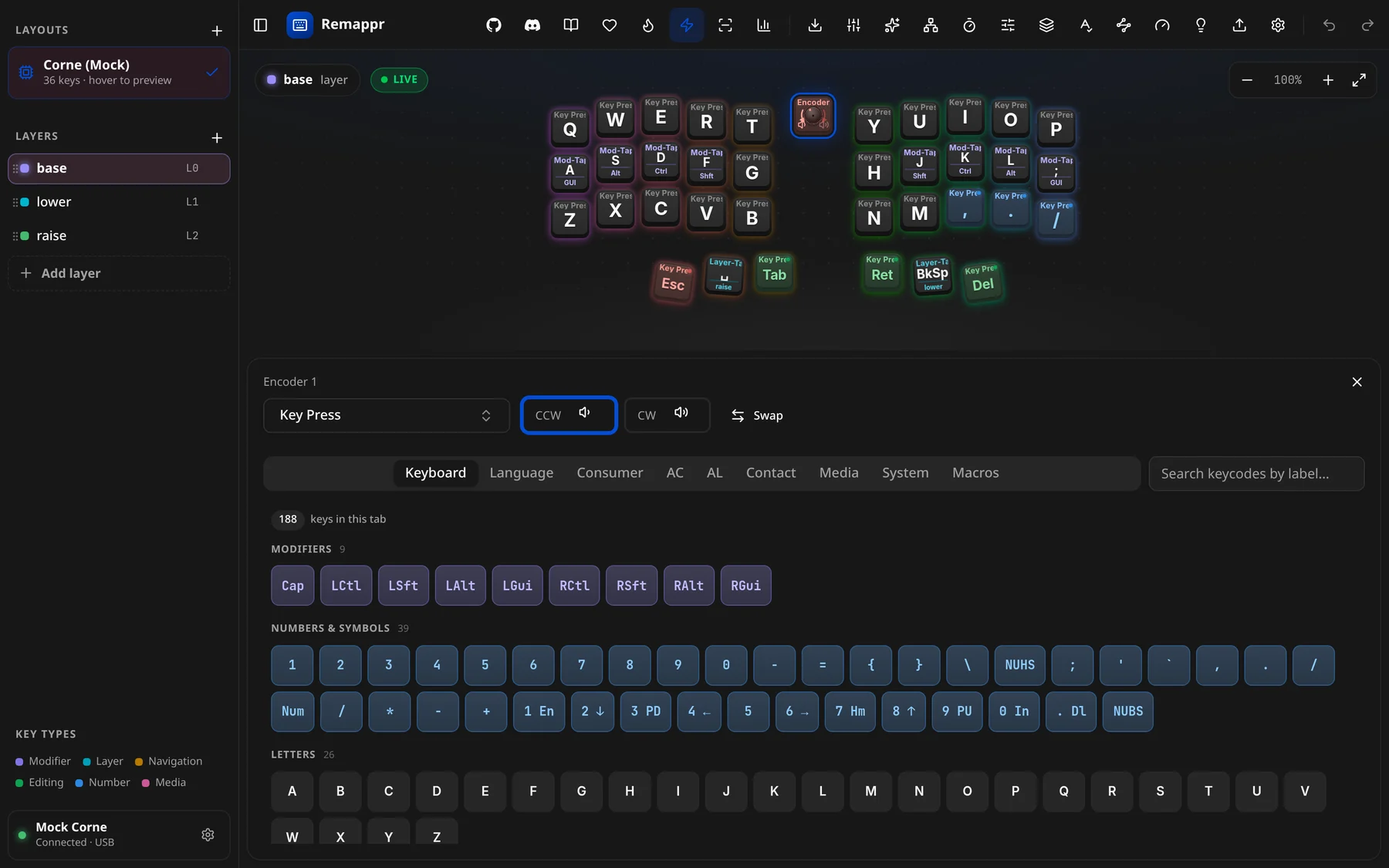
- Encoder n names which encoder you are editing.
- CCW and CW are the two turn directions, each its own binding (volume down / volume up, scroll, brightness…). The side of the knob you clicked picks which slot is active; click the other chip to switch.
- Swap exchanges the two — for a knob wired the other way round.
The knob cap shows both directions' legends on its left (CCW) and right (CW) rims.
Workspaces
Where the binding editor opens is a matter of taste. Pick a workspace in Settings → Workspace:
| Workspace | Settings description |
|---|---|
| Workbench | "Edit the selected key in a sheet below the board." |
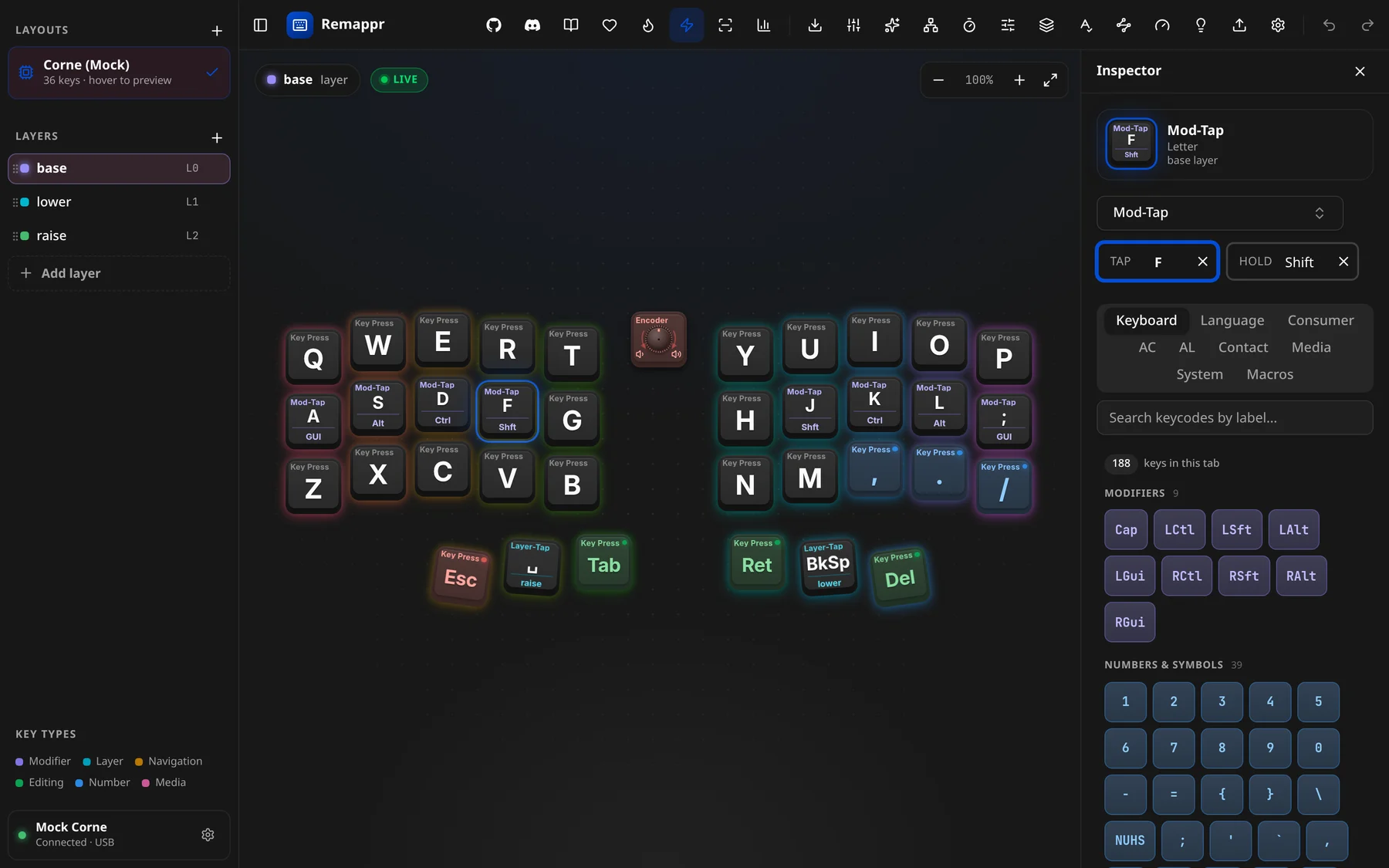
| Inspector | "A persistent panel on the right; the board reflows." |
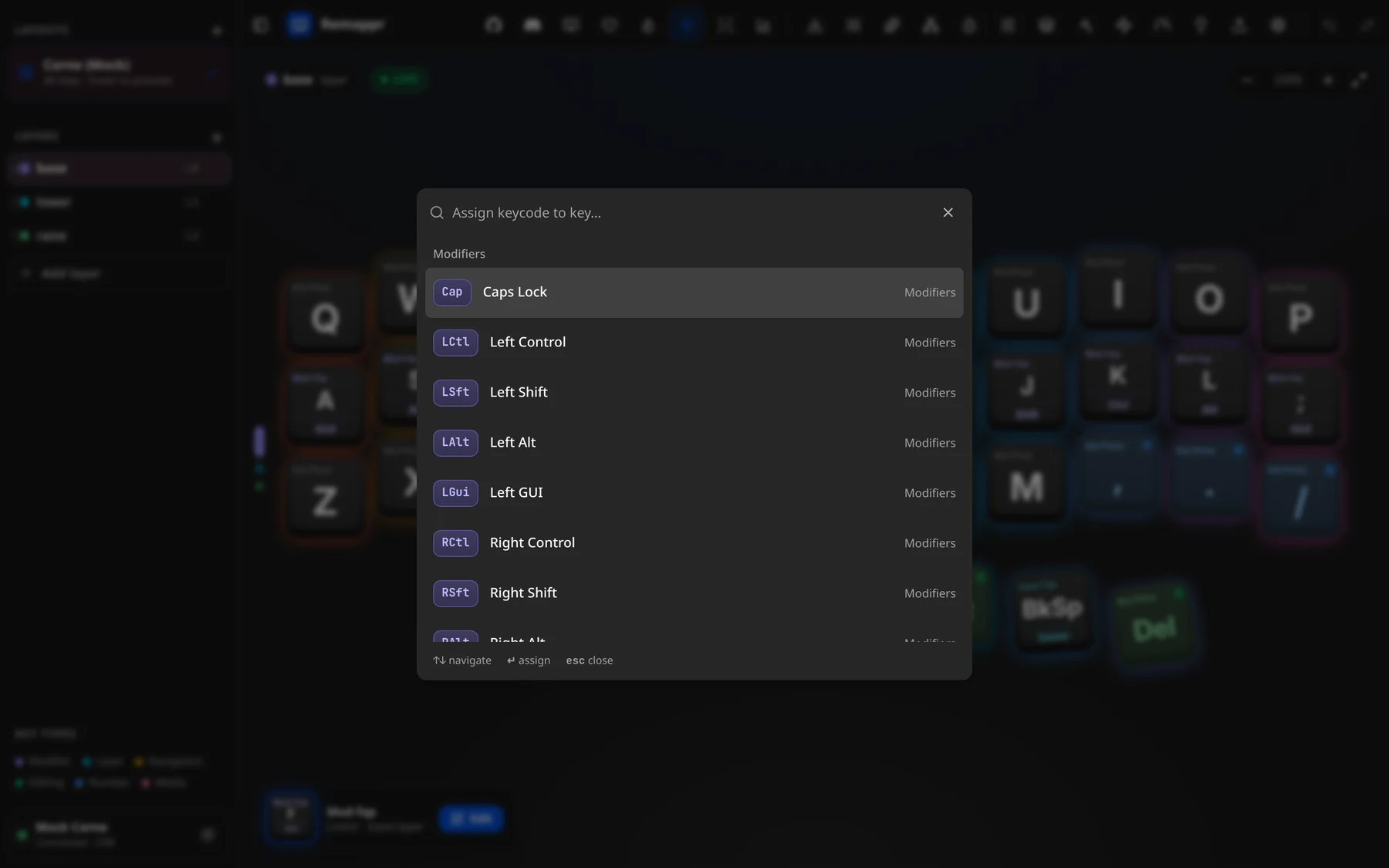
| Command | "Assign with a ⌘K palette; a layer colour-rail on the left." |
Inspector keeps the editor docked on the right and shows the selected key at the top — its cap, category and layer — above the same action type, slots and picker:
Command is keyboard-first: clicking a key (or ⌘K) opens a searchable palette — type, move with ↑ ↓, assign with ↵, close with Esc. A thin colour rail on the left edge shows the active layer.
Undo, discard and save
Every change is undoable (↶ / ↷ in the header). What happens to it on the keyboard depends on Auto-save:
- Auto-save off (the default) — edits collect until you press Save; Discard changes drops them. On ZMK the keyboard already runs the edits (ZMK Studio edits live) but only keeps them once saved; on QMK, VIA, Vial and Keychron they are held in Remappr and sent on Save.
- Auto-save on — QMK, VIA, Vial and Keychron write each edit immediately; ZMK saves about a second after your last edit. The Save button becomes a pulsing auto-save indicator.